Why do my variants not share stock?
Shopify does not know that two variants use the same item on your shelf. Say you sell a candle as a single, a 3-pack, and a 6-pack, and you have 30 candles. Shopify can show 30 for each variant. When a customer buys a 6-pack, the single still shows 30.
The same thing happens with designs on one blank, decants from one bottle, bags from one roast, a case of 12 bottles, and fabric cut from one bolt.
How do I make variants share one stock?
Count your shelf
Count the real items. Do not add up the numbers in Shopify.
Make a base stock
In OneShelf, click New base stock. Type a name, a unit, and your count in On hand.
Choose the variants
Click Choose listings and select each variant. Set Uses per sale: 1 for the single, 3 for the 3-pack, and 6 for the 6-pack.
Check now and after
With 30 candles, the single shows 30, the 3-pack shows 10, and the 6-pack shows 5. Save, and click Go live in Settings.
After a 6-pack sells, the base stock goes from 30 to 24. OneShelf sets the single to 24, the 3-pack to 8, and the 6-pack to 4. A sale at Shopify POS takes from the same count.
Can OneShelf break my store?
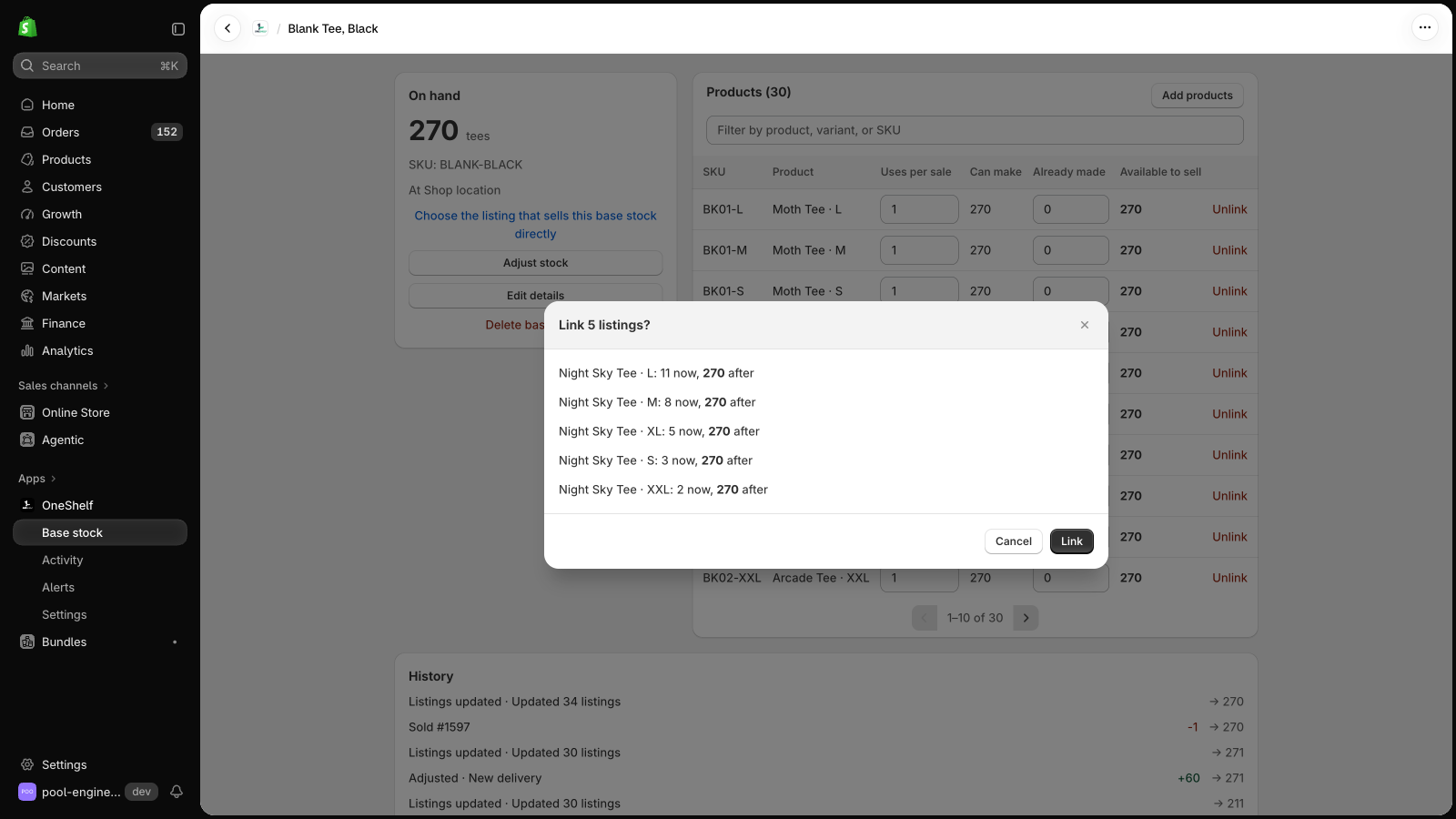
- OneShelf starts in Preview mode, and it changes nothing in Shopify until you click Go live. Before you save a link, it shows each listing now and after.
- It adds no code to your theme. When a quantity changes in Shopify outside OneShelf, it does not write over it. It asks you first.
- To stop, go back to Preview mode. Your listings keep their quantities.