What causes overselling on Shopify?
| Cause | How to check | Fix |
|---|---|---|
| "Continue selling when out of stock" is on | Open the variant and look under Inventory. | Turn it off, unless you take backorders on purpose. |
| "Track quantity" is off | Open the variant. | Turn it on and type the real count. |
| The count in Shopify is wrong | Count your shelf and compare. | Correct the quantity, and count again on a schedule. |
| Another sales channel has its own count | Look for marketplaces or other stores that sell the same stock. | Keep all channels at the same number with one app that connects them. |
| Two apps set the same quantity | Look at which apps change the stock. | Let only one app set the stock of each listing. |
| Many listings sell one real item | Look for a set that is in stock while an item in it is sold out alone. | Give the listings one shared count. |
Why does shared stock oversell?
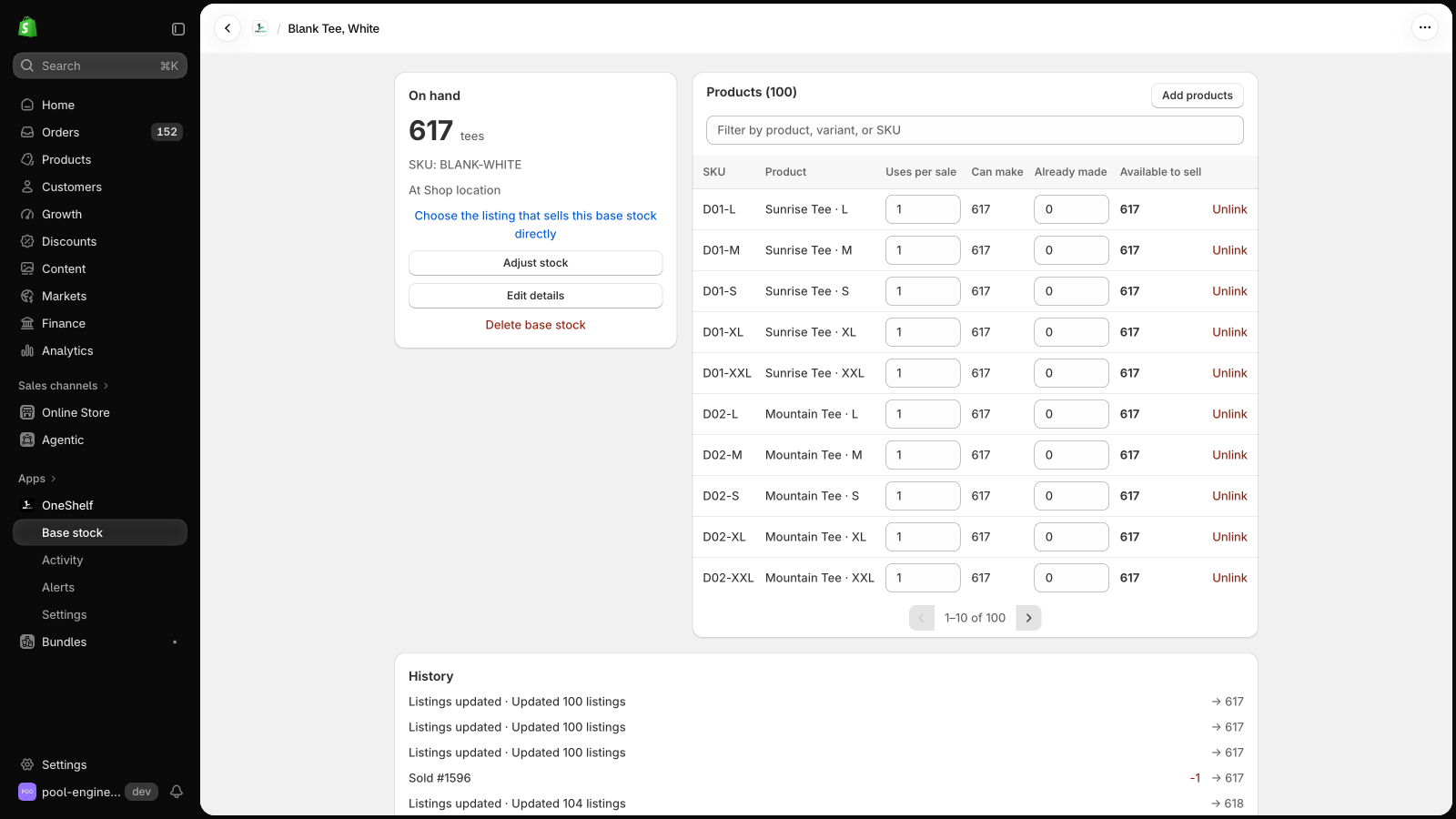
Shopify counts each listing by itself. If 10 tee designs use the same blank and you have 8 blanks, each design shows 8. The store can sell 80 tees from 8 blanks, and many shops find out only when they pack the order.
The reverse also happens. If you split 3 kg of tea by hand into 12 small bags and 8 large bags, the small size says sold out when its 12 bags sell, while you still have tea.
A OneShelf base stock holds the real count, and every linked listing sells from it. The checkout rule stops a cart that asks for more than the base stock has.
Can OneShelf break my store?
- OneShelf starts in Preview mode, and it changes nothing in Shopify until you click Go live. Before you save a link, it shows each listing now and after.
- It adds no code to your theme. When a quantity changes in Shopify outside OneShelf, it does not write over it. It asks you first.
- To stop, go back to Preview mode. Your listings keep their quantities.